
For years, “claim your listing” meant Google Business Profile, Yelp, Apple Maps and Bing. As of November 10, 2026, it also means ChatGPT.
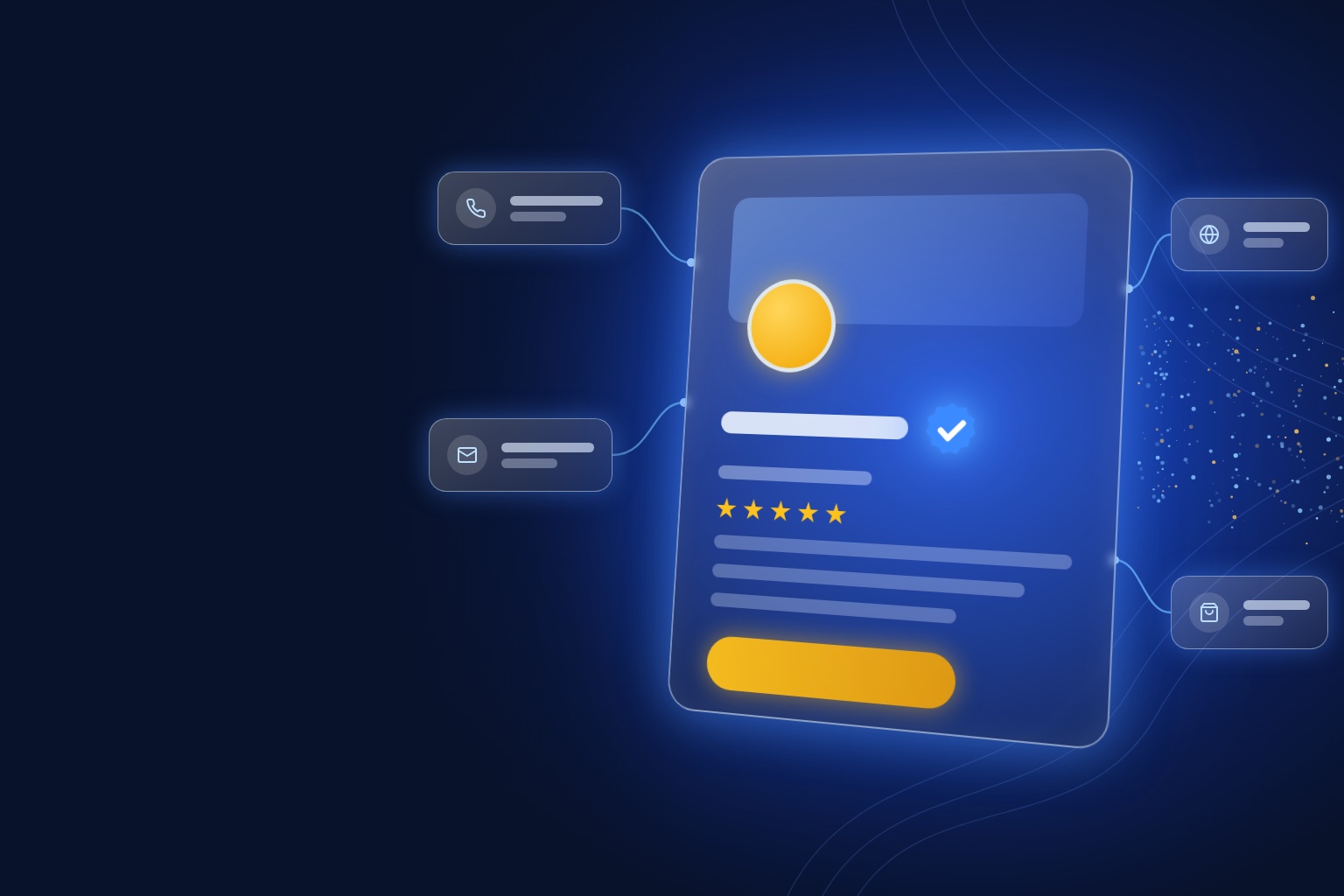
OpenAI has launched Businesses in ChatGPT in beta. Through a new tool called Business Hub, a business owner (or someone authorized to represent the business) can claim the business’s profile in ChatGPT, verify it, keep its details current, and see how often ChatGPT mentions it. ChatGPT now reaches about 1.2 billion people every week, and when your business comes up in an answer, people can click through to its ChatGPT profile.
Your business can show up in ChatGPT whether or not you claim it. ChatGPT already builds answers about you from your website, directories and reviews. Claiming is how you get a say in what it shows.
This guide walks through how to claim your business in ChatGPT step by step, how to list it if it isn’t there yet, which verification method to choose, what to update once you are in, how to read the new insights, and what claiming does and does not change. It is based on OpenAI’s announcement, its Businesses in ChatGPT policy, and the Business Hub help article, all published November 10, 2026.
Key takeaways
- You claim your business in ChatGPT through Business Hub at chatgpt.com/business-hub, or from the Business Hub link in the ChatGPT sidebar.
- Claiming takes two approvals. First you verify your claim by business phone, business email, website domain or Shopify. Then you verify your identity with Persona. You can edit your profile, see insights and get the blue check only after the second approval.
- It is open to any eligible business where ChatGPT is available, but local stores and restaurants can currently claim only an existing U.S. listing, and claiming is initially limited to businesses with a website.
- You don’t need ChatGPT Ads or an Enterprise agreement. Claiming, advertising and Business Agents are separate.
- Claiming does not buy placement. It lets you correct and add information. ChatGPT still makes its own recommendations and still reads other sources, so your Google, Bing, Apple and Yelp listings matter as much as ever.
What is a ChatGPT business profile?
A ChatGPT business profile is the page people can open when your business comes up in a ChatGPT answer. Businesses in ChatGPT is OpenAI’s program for claiming that profile, managing the information ChatGPT shows about your business, and seeing aggregated insights on how people find you there. You manage all of it in Business Hub.
It has four parts:
- A business profile. When your business appears in a ChatGPT answer, people can open its profile. Once you claim and verify it, a blue check shows the profile has been claimed.
- Business information you control. After approval you can update your website, description, product or service category, logo, cover photo, delivery policy, return policy and other details.
- Insights. Mentions, website clicks and “discovery topics” (the themes of the conversations where your business comes up) over the past 28 days.
- Product feeds and Business Agents. Retailers can upload product feeds with pricing and availability. Eligible U.S. ecommerce and online service businesses can also publish a Business Agent, a chat assistant that answers questions about their products and policies inside ChatGPT.
If you have ever claimed a Google Business Profile, the idea will feel familiar. The difference is where the profile shows up: inside a conversation, at the moment someone is asking an AI which business to choose.
Here is OpenAI’s 49-second launch video for Businesses in ChatGPT:
Who can claim a business in ChatGPT
You can claim a business if you own it or are authorized to represent it. Beyond that, eligibility depends on the business’s location, industry and type, and on OpenAI’s verification and integrity checks. OpenAI says plainly that not every business can claim a profile yet, and that some categories may wait until it has the right safeguards in place.
Here is how the pieces line up today:
| What you want to do | Who can do it right now |
|---|---|
| Claim an existing profile | Eligible businesses in countries where ChatGPT is available, initially those with a website. Local stores and restaurants can claim only an existing U.S. listing. |
| Add a new profile | Some eligible online businesses will see an option to add their business if it isn’t listed. |
| Edit details, see insights, add a product feed | Anyone whose claim and Persona identity verification are both approved. |
| Publish a Business Agent | Eligible ecommerce and online service businesses in the U.S. with a website, in industries allowed by the Business Agents Policy. |
Two things you do not need: a ChatGPT Ads account or a ChatGPT Enterprise agreement. If your company already works with an OpenAI account executive, as an Enterprise customer or an advertiser, you can claim through them instead. OpenAI doesn’t mention a fee for claiming anywhere in its launch materials.
Before you start: what you’ll need
Ten minutes of preparation saves a rejected claim later. Have these ready:
- A ChatGPT account you plan to keep. The account you claim with becomes the admin. Use one tied to a company email address that the business controls, not a freelancer’s or a former employee’s personal account.
- Access to one verification channel: the business phone number listed for your business, the business email address associated with it, DNS access for your website domain, or admin access to your Shopify store.
- Identity and business documents for the Persona step: possibly a government-issued ID, business registration information, and proof that you are authorized to represent the business.
- Your official business records. The business name, address, and any registration or tax number you submit must match your official records. Mismatches are the most common reason identity checks fail.
- Final versions of what you want to publish: a short business description, your logo, a cover photo, and your delivery and return policies if you sell online.
How to claim your business in ChatGPT, step by step
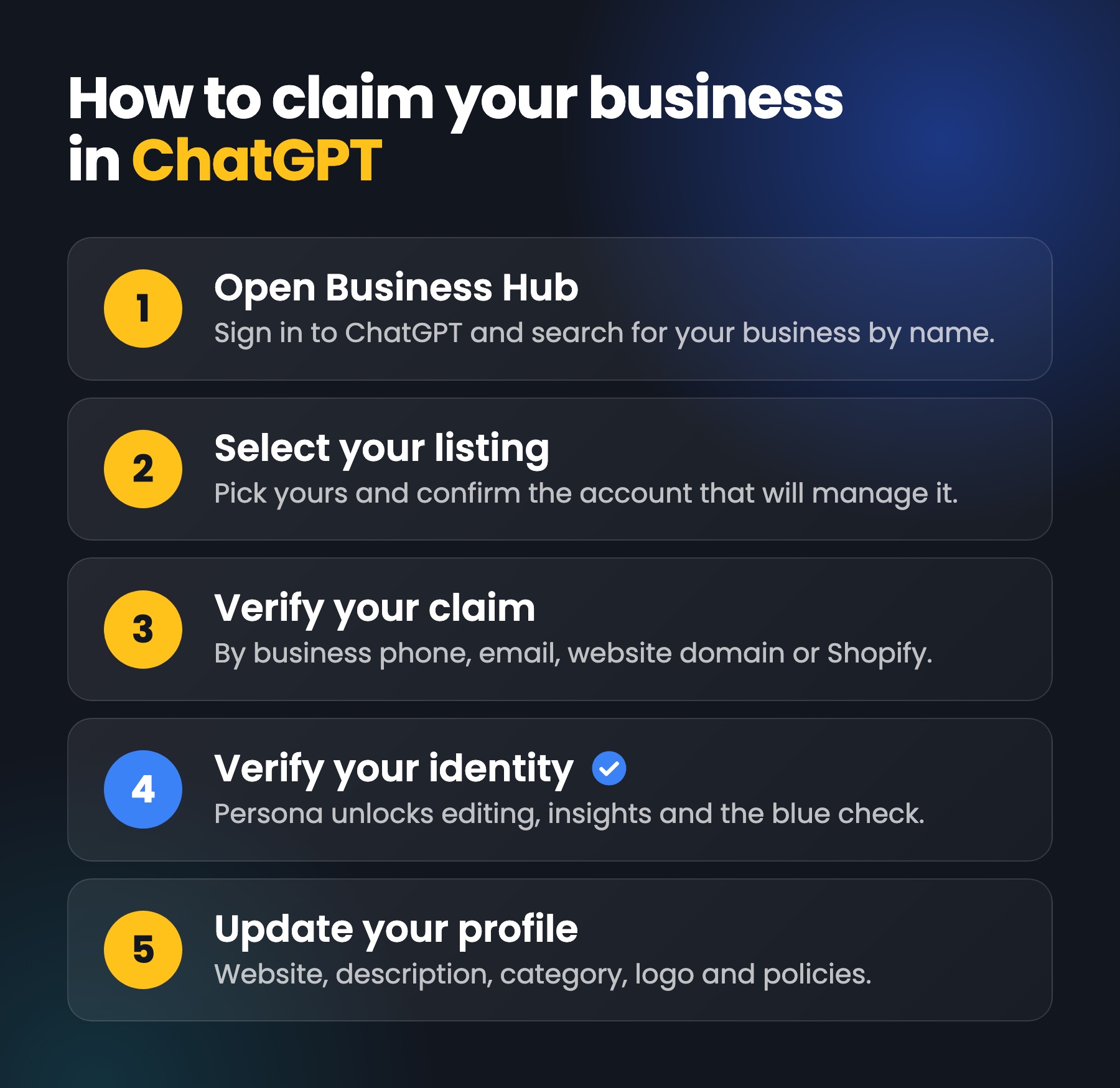
Step 1: Open Business Hub and search for your business
Sign in to ChatGPT and open Business Hub from the sidebar, or go straight to chatgpt.com/business-hub. Search for your business by name.
If OpenAI emailed you a claim invitation, open the personal link in that email and sign in with the same email address that received it.
Step 2: Select your listing and confirm the managing account
Pick the listing that matches your business, check the name and location carefully if you have look-alike competitors or multiple branches, and confirm the ChatGPT account you’ll use to manage it.
Three things can happen here:
- You find your listing. Continue to verification.
- You see “Contact support.” The listing is locked. Use the button to request access from OpenAI. Individual location profiles of brands that use a managed claim process are locked this way by default.
- You can’t find your business. If you run an eligible online business, you may see an option to add it. Local stores and restaurants can’t add a new listing yet; they can only claim one that already exists in the U.S.
Step 3: Verify your claim
Choose one of the verification methods ChatGPT offers for your business. You may not see all four.
| Method | How it works | Best for |
|---|---|---|
| Business phone | Choose a text message or an automated call, select Get code, and enter the code sent to the number on file. | Local businesses whose listed number rings at the front desk or on the owner’s phone. |
| Business email | Select Get code and enter the code sent to the email address associated with your business. | Businesses whose public email is a monitored inbox on the company domain. |
| Website domain | Add the TXT record ChatGPT shows you to your domain’s DNS settings, then return and select Verify domain. | Online businesses, and anyone whose listed phone number or email goes to a call center or shared inbox. |
| Shopify store | Select Connect Shopify, review the permissions, and log in to the Shopify store for the business you are claiming. | Shopify merchants. It also brings your product catalog with it. |
A few practical notes:
- We recommend domain verification if you or your web team can edit DNS: it doesn’t depend on who answers the listed phone or inbox. Copy the type, the name (or host) and the value exactly. If someone else manages your domain, send them the record. DNS changes can take a while to show up, so if verification fails the first time, wait and try again.
- Phone and email codes go to whatever is on the listing, not to you. If the listed number is a tracking number or an old line, fix it on your website and your Google Business Profile first, or use domain verification instead.
- Shopify merchants can also start from the Shopify side by installing the ChatGPT app from the Shopify admin. Eligible Shopify products already appear in ChatGPT through Shopify Catalog.
Step 4: Wait for OpenAI to approve your claim
OpenAI reviews each claim and emails you its decision or a request for more information. While the claim is under review you can cancel it, but there is nothing to speed it up. OpenAI says review times vary.
Step 5: Verify your identity with Persona (this is what gets you the blue check)
Claim approval gets you into Business Hub. It does not yet let you publish changes, see insights, connect a product feed or create an agent. For that you need to complete identity verification with Persona, OpenAI’s identity verification partner.
- Select Verify with Persona, then Continue to Persona.
- Follow Persona’s instructions and submit what it asks for, which may include a government-issued ID, business registration details, and proof you can represent the business.
- Wait for OpenAI’s decision by email.
If you verified your claim another way earlier, you can do this step later: open the Business tab, select your profile, find Complete verification with Persona in the business overview, and select Verify.
Two details catch people out:
- The blue check comes from Persona, not from the claim. Claiming alone does not add the verified badge. It appears once your Persona verification is approved.
- If you are creating a brand-new profile through Persona, approval publishes it automatically. There is no separate publish step, so only continue when the profile is ready.
Step 6: Update your business information
Once both approvals are in, open your profile in Business Hub and update:
- Website (make sure it is the canonical domain, not a landing page or tracking link)
- Business description
- Product or service category
- Logo and cover photo
- Delivery policy and return policy, if you sell online
- Other optional details the profile offers
OpenAI’s policy requires everything you add to be truthful and current, including your business name, category, address or service area, hours, contact details and the products or services you offer. No fabricated reviews, no unsupported guarantees, no hidden fees, and no images or logos you don’t have the rights to use.
OpenAI reviews and publishes changes, so updates are not instant. Even after a change is live, ChatGPT may still draw on other sources when it answers questions about you. More on that below.
Step 7 (optional): Add a product feed or a Business Agent
Product feeds. If you sell products, you can connect a Shopify feed, upload a CSV that follows OpenAI’s product feed specification, or point to a hosted feed URL. This shares prices and availability with ChatGPT. Products must follow OpenAI’s Commerce policies, and connecting a feed doesn’t publish an agent or guarantee recommendations.
Business Agents. If you are an eligible U.S. ecommerce or online service business, you can create an agent from the Business tab, review the information it will use, write instructions for how it should answer, test it with real customer questions (for example, “Can I return an item I bought on sale?”), and select Publish. Customers can only chat with a published agent. Agents can explain products and policies and link to your website, but they can’t complete purchases, take bookings or look up orders. You can also sponsor your Business Agent as the destination for ChatGPT Ads; we covered how those ads work in ChatGPT Ads Are Live: How They Work and What Marketers Should Do Now.
You don’t need either one. Plenty of businesses will claim their listing, keep it accurate, and stop there.
How to list your business on ChatGPT if it isn’t there yet
Searching Business Hub and finding nothing is common right now. What you can do depends on the kind of business you run:
- Online businesses (ecommerce, software, online services): you may see an option to add your business. If you create the profile through Persona verification, OpenAI’s approval publishes it automatically, so have your description, logo and policies ready before you start.
- Local stores and restaurants: you can’t add a new listing yet. You can only claim an existing U.S. listing, so check back as OpenAI expands coverage.
Either way, a Business Hub profile isn’t the same as being recommended. ChatGPT may show information about your business whether or not you’ve claimed anything, and it builds that picture from your website, your reviews and your other listings. If ChatGPT doesn’t seem to know your business at all, the fix is the same work that gets any business into AI answers: a crawlable website with clear facts, consistent listings on Google, Bing, Apple and Yelp, and steady reviews. We cover the basics in What Is LLM SEO? How Local Businesses Get Recommended by AI.
If someone else already claimed your business
If your business shows as claimed and it wasn’t you, open its profile, select the more options menu (•••), then Dispute ownership. You’ll go through Persona to prove you are authorized to represent the business. Claiming or disputing a profile does not change its visibility in ChatGPT, so a dispute won’t hurt how often you appear.
Before you file, check internally. The most common “someone claimed us” story is a former marketing contractor or an employee who claimed it with a personal account.
Giving your team or your agency access
The admin who claimed the business can add teammates in Business Hub and grant an agency access to manage the business or its agent. Each person should use their own ChatGPT account. Don’t forward a personal claim invitation to someone else to give them access.
Our recommendation: the business should own the claim, and the agency should be a guest. Claim it with a company-controlled account, then invite your marketing partner. If the relationship ends, you remove them and nothing breaks. (Claiming and keeping up this profile is part of our AEO service.) If your business was claimed inside a ChatGPT workspace, invitees may need to be members of that workspace; if an agency invitation is blocked, OpenAI Support can check the options.
Multiple locations or multiple brands
Each distinct brand is managed separately, and there is no central dashboard across a parent company’s brands and locations yet. Claiming the main brand does not claim its locations. For brands that use a managed claim process, individual location profiles stay locked by default, so ask your OpenAI account contact about the supported path.
If you run a multi-location business without an OpenAI contact, claim the profiles you can, keep each location’s details consistent with its Google and Apple listings, and expect more tooling here over time.
What claiming changes, and what it doesn’t
This is the part most of the launch-week coverage skips.
What claiming changes:
- You can correct and add information ChatGPT uses about your business.
- Your profile gets a blue check once Persona verification is approved.
- You can see mentions, website clicks and discovery topics.
- You become eligible for product feeds and, if you qualify, a Business Agent.
- Anyone else who wants control of the profile has to dispute ownership and verify through Persona.
What claiming doesn’t change:
- It doesn’t guarantee more visibility or sales. OpenAI is explicit that ChatGPT keeps making independent recommendations and comparisons.
- Ads don’t influence ChatGPT’s answers. Sponsored placements are labeled and kept separate from the answer itself.
- ChatGPT still reads other sources. Profiles can include information from elsewhere, and ChatGPT may use other sources when answering questions about your business. If your Google Business Profile, Yelp page or website says something different, the answer may too.
- Saved changes are not instant. OpenAI reviews them, and a saved change won’t show up in every answer right away.
In other words, a claimed ChatGPT listing is a foundation, not a shortcut. What ChatGPT says about you still depends on the whole picture: your website, your reviews, your other listings and what third parties write about you. Our guide to AEO (answer engine optimization) covers that bigger picture in depth.
How to read your Business Hub insights
Once you’re verified, open your business in Business Hub and select Insights. Everything covers the past 28 days and is aggregated.
| Metric | What it actually counts |
|---|---|
| Mentions | For an online business, a mention is counted when ChatGPT references your website. Your brand name appearing on its own doesn’t count. For a local business, a mention is counted when ChatGPT shows a result for that location, even if the person never opens the listing. |
| Website clicks | How often people click through from ChatGPT to your website. |
| Discovery topics | Common themes in ChatGPT answers that mentioned or cited your business. They are grouped categories, not individual questions. |
Three things to keep in mind when you report on these numbers:
- You will never see individual prompts or conversations, including chats with your Business Agent. OpenAI only shares aggregates.
- A blank metric doesn’t mean zero. It can mean activity hasn’t reached the reporting threshold, data is still being collected, or reporting is unavailable. Smaller businesses should expect blanks at first.
- For online businesses, “mentions” undercounts brand presence. If ChatGPT names you without referencing your site, Business Hub won’t count it. Pair it with your own prompt tracking and with AI referral traffic in your analytics.
Discovery topics are the most useful number for strategy. If ChatGPT keeps citing you for a topic you don’t actually want to be known for, or never for the service that makes you money, that tells you which pages to write and which facts to fix.
Claim your listing everywhere else ChatGPT reads
Because ChatGPT still draws on other sources, claiming your ChatGPT business profile is step one, not the whole job. These are the other listings worth claiming and keeping identical:
| Listing | Where to claim it | Why it matters for AI answers |
|---|---|---|
| Google Business Profile | business.google.com | Feeds Google Maps, Google AI Overviews and Gemini, and it is the reference most other directories copy. |
| Bing Places for Business | bingplaces.com | Feeds Bing and Microsoft Copilot. You can import your Google Business Profile to set it up faster. |
| Apple Business Connect | businessconnect.apple.com | Controls how you appear in Apple Maps, Siri and Spotlight on every iPhone. See our Apple Business Connect guide. |
| Yelp for Business | biz.yelp.com | Yelp licenses its business data to OpenAI, so Yelp details, ratings and reviews can appear in ChatGPT’s local answers. Our ChatGPT Maps + Yelp playbook covers how. |
| Industry directories | Varies (Houzz, Healthgrades, Avvo, Tripadvisor and others) | AI assistants lean on the specialist sites buyers in your category already trust. |
The rule across all of them is the same: one name, one address, one phone number, one set of hours, one description, everywhere. AI assistants corroborate. When your sources agree, they repeat you with confidence. When they disagree, they hedge, or pick the wrong one.
Troubleshooting: common problems and fixes
| Problem | What to do |
|---|---|
| The listing says Contact support | It’s locked. Use the button to request access. Brands with a managed claim process should go through their OpenAI account contact. |
| You can’t find your business | Eligible online businesses may see an option to add it. Local stores and restaurants can currently claim only an existing U.S. listing, so check back as coverage expands. |
| The phone or email code goes somewhere you can’t reach | Use domain verification, or update the number and email on your website and other listings first. |
| Domain verification fails | Check the TXT record was copied exactly (type, host and value), then give DNS time to update and select Verify domain again. |
| Persona verification fails or expires | Follow the email. If Try again is available, resubmit with the business name, address and registration or tax number exactly as they appear on your official records. |
| You can’t create a Business Agent | Confirm you’re on the claimed profile, your Persona verification is approved (not pending), and your business meets the location, type and industry rules. |
| Your updated details aren’t showing | OpenAI reviews changes before they go live, and ChatGPT may still rely on other sources. Make sure those sources say the same thing. |
| Insights are blank | You may be below the reporting threshold or data may still be collecting. If it stays blank, contact OpenAI Support. |
When you contact OpenAI Support, include the step you were on, any error message, and a screenshot with sensitive information removed.
Frequently asked questions
How do I claim my business on ChatGPT? Sign in to ChatGPT, open Business Hub (chatgpt.com/business-hub), search for your business, select your listing, and verify by business phone, business email, website domain or Shopify. After OpenAI approves the claim, complete identity verification with Persona to unlock editing, insights and the blue check.
How do I list my business on ChatGPT? Open Business Hub and search for your business. If it’s there, claim it. If it isn’t, eligible online businesses may see an option to add it, while local stores and restaurants can currently only claim an existing U.S. listing. Keeping your website and your Google, Bing, Apple and Yelp listings accurate also shapes how ChatGPT describes you.
Is claiming my business in ChatGPT free? OpenAI doesn’t mention any fee for claiming, and you don’t need a ChatGPT Ads account or an Enterprise agreement. Advertising is a separate, paid product.
How long does it take? The steps themselves take minutes. Approval doesn’t: OpenAI reviews both the claim and the Persona submission and emails you each decision, and says review times vary. Domain verification can also wait on DNS changes.
Will claiming my business make ChatGPT recommend it more? Not by itself. Claiming lets you manage the information you provide. It doesn’t guarantee visibility or control ChatGPT’s independent recommendations. Accurate information, strong reviews and third-party coverage are what move recommendations.
How do I get the blue check on my ChatGPT business profile? Complete Persona identity verification and wait for approval. Claiming alone does not add the badge.
Can my marketing agency claim my business for me? They can help, but the cleanest setup is for the business to claim with its own company account and then grant the agency access from Business Hub. Don’t forward a personal claim invitation.
Can I claim multiple locations at once? No. Each brand is managed separately, claiming the main brand doesn’t claim its locations, and there is no central management for multi-location businesses yet.
Is Businesses in ChatGPT available outside the U.S.? Claiming is open to eligible businesses located where ChatGPT is available, but local stores and restaurants can currently claim only existing U.S. listings, and Business Agents are U.S.-only for now. OpenAI plans to expand to more markets and categories.
Do I need a Business Agent to show up in ChatGPT? No. ChatGPT may show information about your business whether or not you have an agent. The agent only adds a way for customers to chat with your business.
What happens if I don’t claim my listing? Your business can still appear in ChatGPT, using whatever information ChatGPT finds elsewhere. You just won’t be able to correct it, see insights, or stop someone else from claiming it first.
The bottom line
Claiming your business in ChatGPT is the easiest AI visibility win available right now. It takes an afternoon of work, it protects your profile, and for the first time it gives you real numbers on how often ChatGPT puts your business in front of people.
Do it this week. Claim with a company-owned account, verify with your domain if you can, finish the Persona step so you get the blue check, and make sure every detail matches your Google, Bing, Apple and Yelp listings.
At MaaS by CodeSM, keeping our clients’ listings accurate across Google, Bing, Apple, Yelp and now ChatGPT is part of how we run their SEO and reputation management, alongside tracking what AI assistants say about them. If you’d like help claiming your business in ChatGPT or checking what ChatGPT says about you today, get in touch.
Share this article